Keeping your address information accurate ensures your account stays compliant, tax calculations remain correct, and payouts arrive without delay. To simplify your settings, Helcim uses a single primary business address as your account's source of truth. If you run a home-based business or want to protect your personal privacy, you can also add secondary customer-facing addresses so your private location never appears on customer receipts, invoices, or online checkouts.
This article will explain the types of addresses in your account and show you exactly how to manage them.
View your address book
You can review all physical location profiles linked to your account from one central screen.
Log in to your Helcim account.
Select Settings from the left navigation menu.
Click on My business.
Under the Business information tab, locate Address book
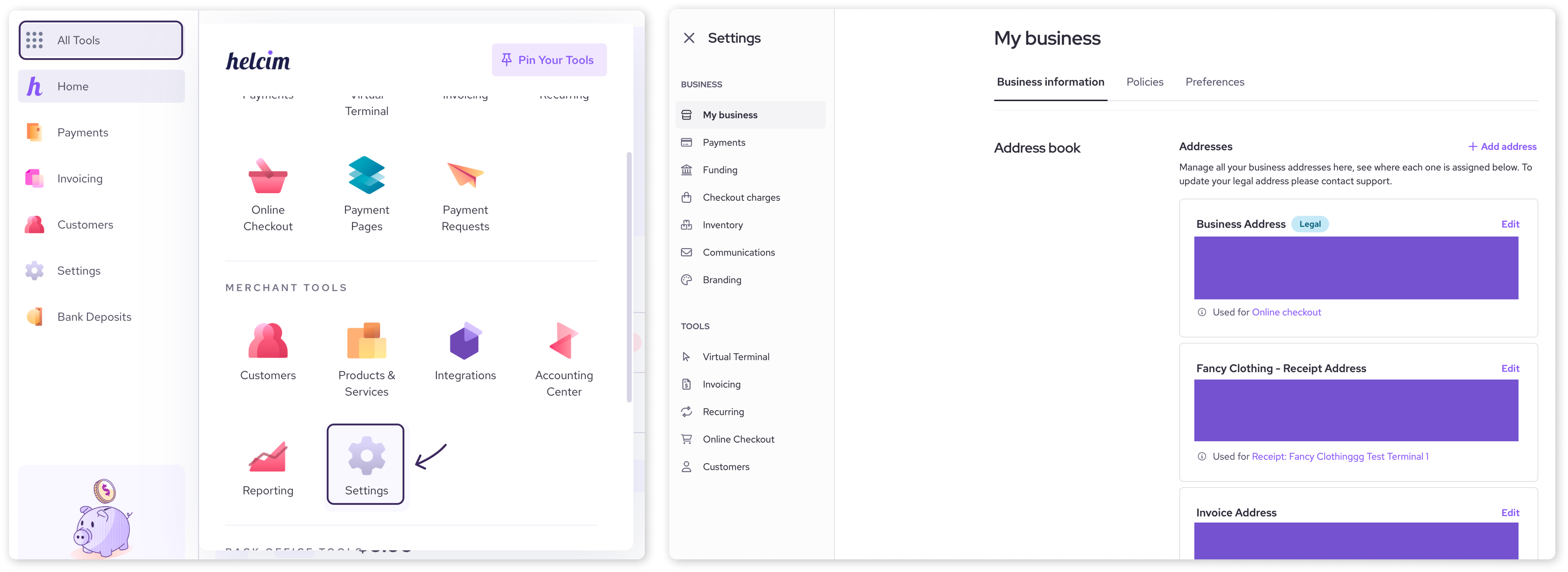
| Your signup address automatically becomes your primary legal address. It will be used on all customer outputs until you create and assign a secondary address. |

Update your business addresses
Whether you need to update your official legal address, protect your home privacy with a secondary P.O. Box, or assign different addresses to specific customer tools, you can manage it all directly from your address book.
Your Legal, Invoice, and Receipt addresses are managed in the My Business section of your account.
Go to Settings > My business > Business information > Address book.
To add a customer-facing address, click + Add address, enter an internal nickname (like "Public P.O. Box") and contact details, then click Save.
To update your legal address, click Edit on the card with the Legal badge.
To choose where an address appears, click Edit on that address card to assign it to your tools, or select it directly within your Processing Account, Invoice Theme Designer, or Online Checkout Theme Designer settings.
Click Save and Assign
 , you will now select which processing account will be associated with that address. Then click Finish to complete.
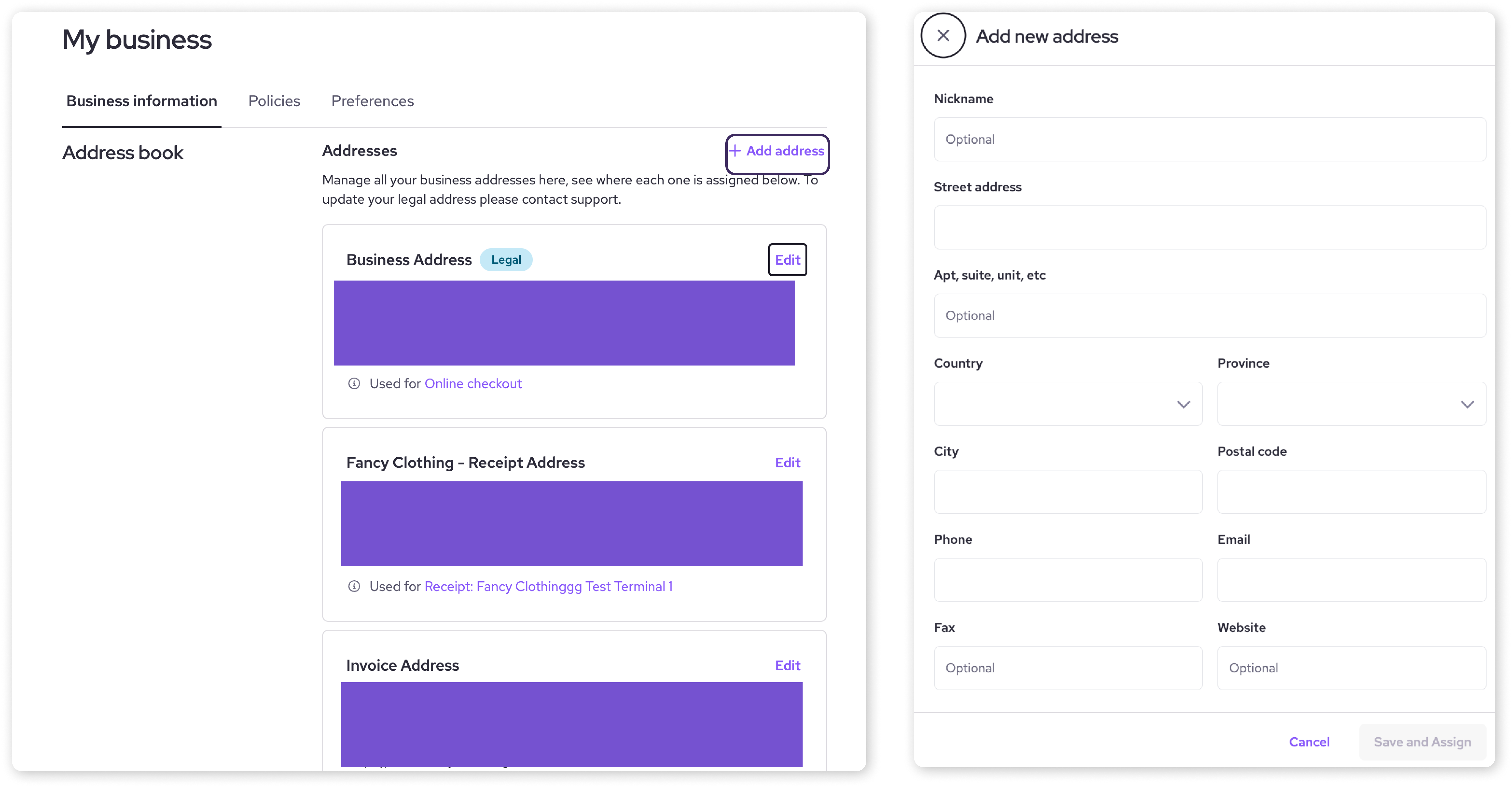
| Payment regulations require a valid street address for your legal address. P.O. Boxes cannot be used for legal business verification, and legal addresses cannot be deleted. |
Next steps
Now that your addresses are organized:
Check your active tools to verify that your receipt and invoice tags (like Used for Online checkout) match your expectations.
Review your Processing Account settings under Settings > My business to make sure daily batch and bank details are up to date.
Reach out to our Merchant Experience team if you need help modifying a verified address
FAQs
How to update and assign an Address type
Legal Address | Click Edit on your Business Address card with the Legal badge to update your street details, email, or phone number. |
Secondary Address | Click + Add address to create a customer-facing profile with a custom nickname, street address (or P.O. Box), and contact details. |
Tool Assignment | Click Edit on any address card to choose where it's used, or select it directly from the location dropdown in Processing Account settings, Invoice Theme Designer, or Online Checkout Theme Designer. |
How do I keep my home address private from my customers?
Click + Add address under Settings > My business > Business information to create a secondary address (like a P.O. Box). Once created, assign that secondary address to your receipts, invoices, and online checkout so customers never see your personal home address.
Why can't I delete my legal business address?
Payment processing regulations and Know Your Business (KYB) requirements state that Helcim must maintain an official physical location on file for every account. You can edit your legal address anytime, but it cannot be completely removed.
What happens to my receipts if I delete a secondary address?
If you delete a secondary address that is currently assigned to receipts or invoices, the platform will prompt you to select a replacement address. If no replacement is chosen, it will safely revert to your legal business address.