Want to sell a T-shirt in multiple sizes and colors without creating separate product listings for each one? Or maybe offer optional gift wrapping for any item in a specific category? That's where variants and add-ons come in handy!
Variants vs. add-ons
Variants are for goods with different required options (like size, color, material). Customers must choose a variant before purchasing. Inventory is tracked per variant.
Add-ons are optional extras (like setup fees, customization, or accessories) that can apply to goods or services. They are defined at the category level first.
Creating variants for goods
Use variants when you have a single type of good that comes in multiple versions your customer needs to choose from.
Setting up variants
Select the
 icon next to a good you’ve created.
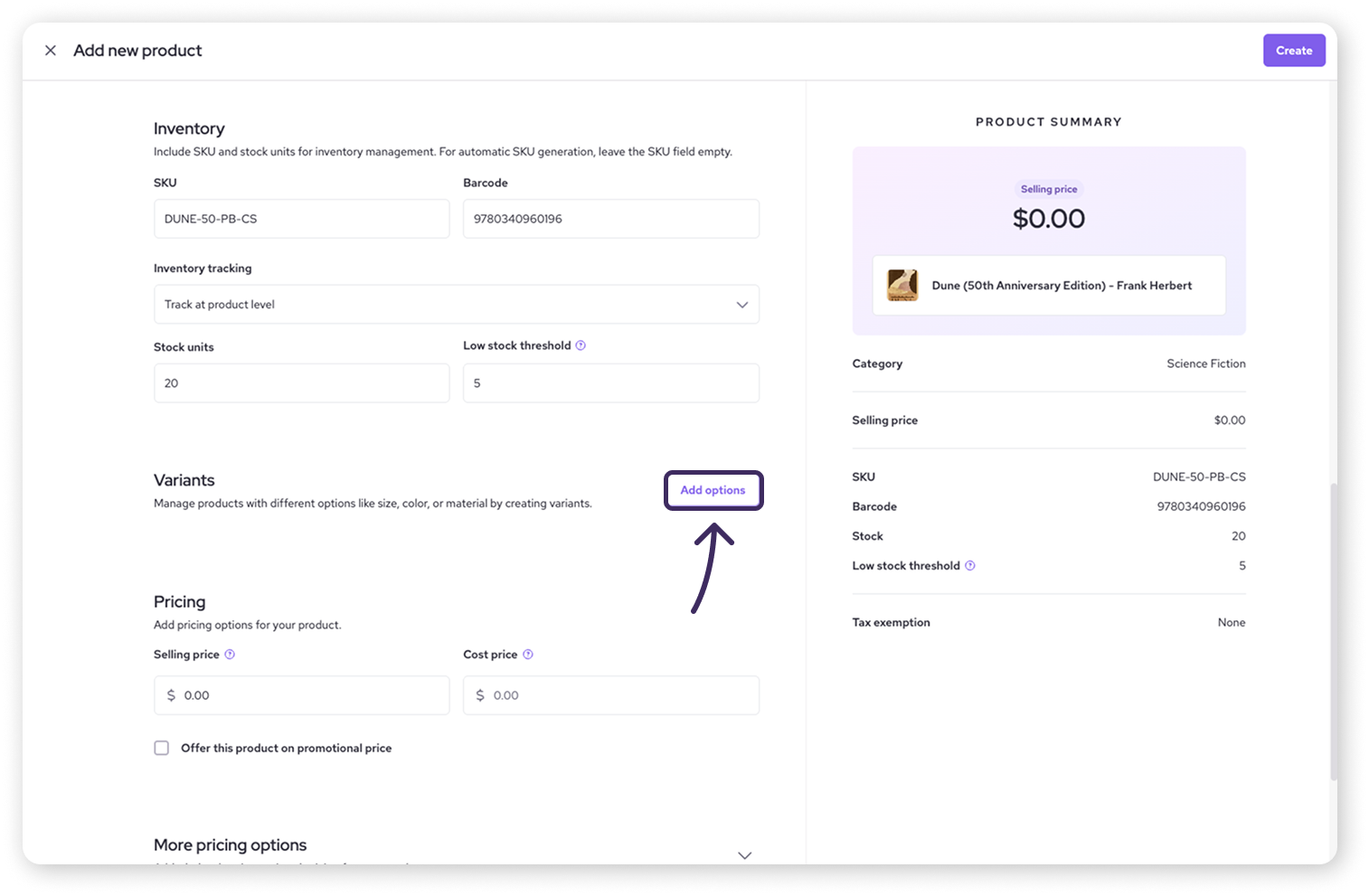
Scroll down to the Variants section on the product editing page.
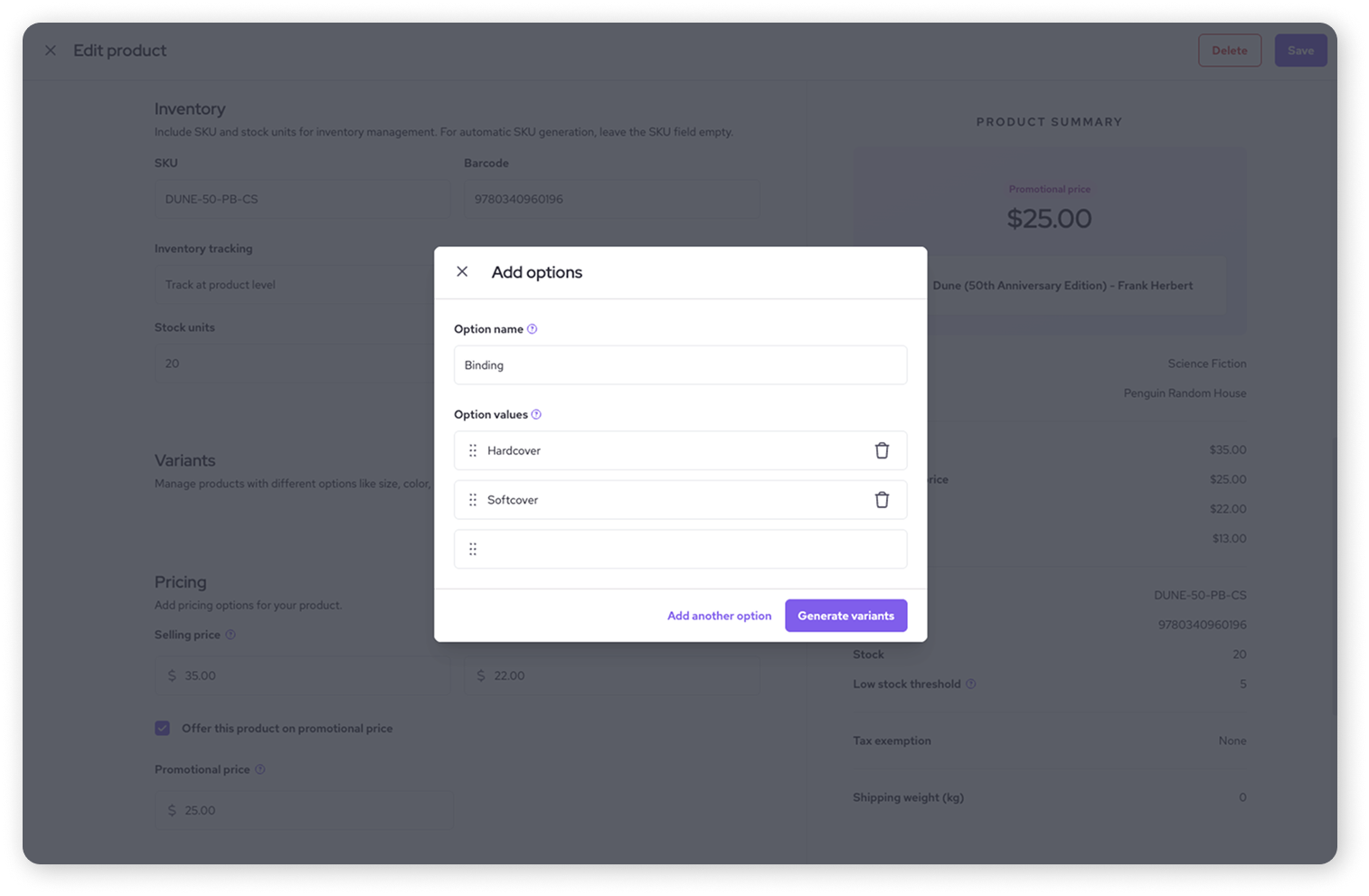
Click the Add options button. A pop-up window (modal) will appear.
In the modal:
Enter an Option name (e.g. "Size"). This describes the type of choice.
In Option values, list the different choices available for that option. New lines will automatically appear each time you add an option.
(e.g. for Size: "Small", "Medium", "Large").
Click Generate variants.
Managing variants
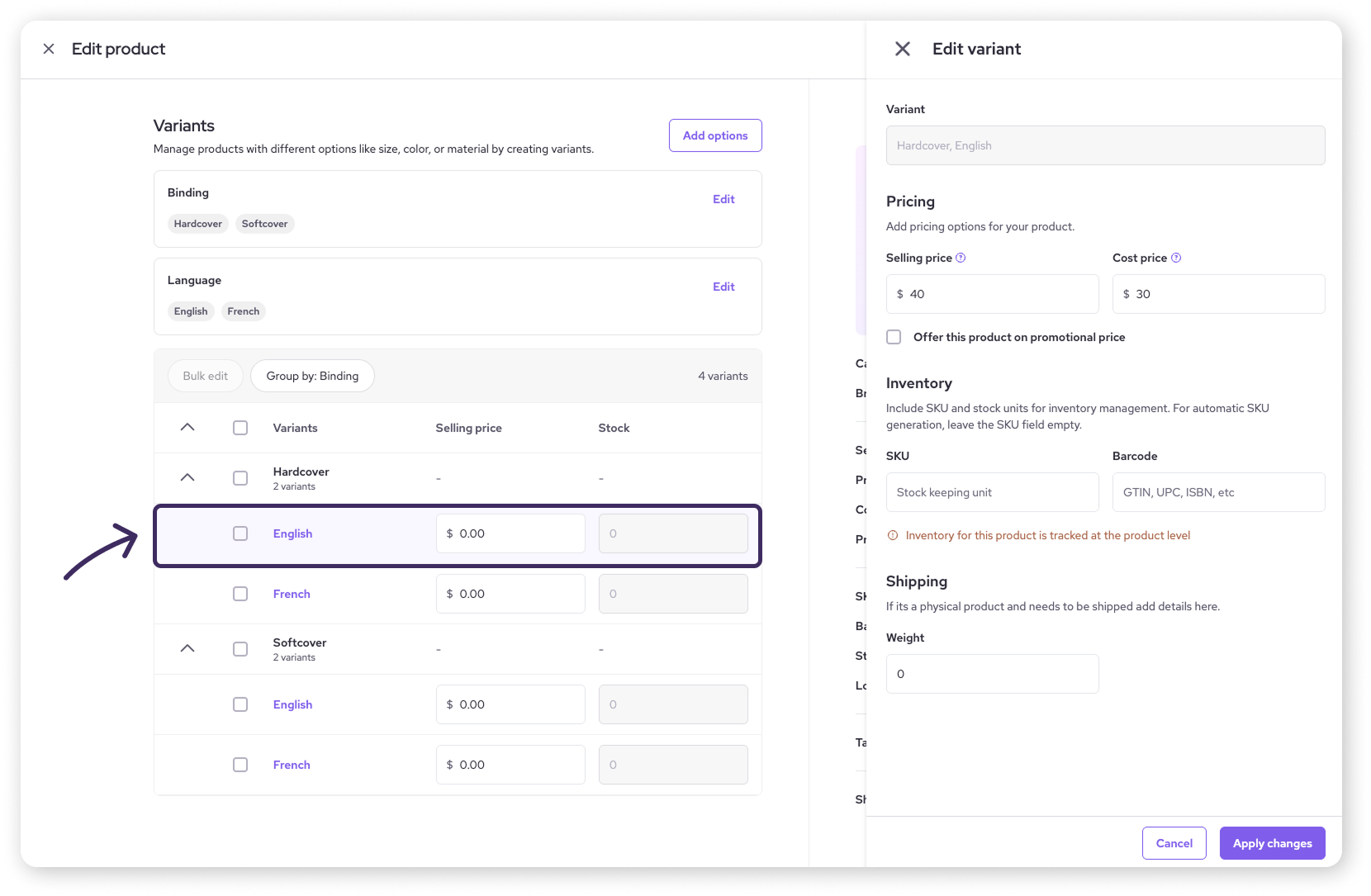
After saving your options, the system automatically creates all possible combinations (variants) and lists them in a table below the Variants section.
Review the Table: Each row represents a unique variant, grouped by the first option value
e.g. all "Small" variants listed together, with subsequent variants listed under "Small / Red", "Small / Blue",
To make edits:
You can make quick adjustments to a variant's Selling price directly in the table by clicking into the field and typing a value.
You can make adjustments to the variant’s Stock if you’ve allowed for Inventory tracking at the variant level.
You can change or add more options by selecting Edit next to the variant.
.png)
Detailed edits to variants
For more detailed changes, click on the variant's name in the table. A side panel will open where you can edit:
Price: Set a specific Selling price, Cost price, or Promotional price for this specific variant. (Note: Variant pricing overrides the main product price).
Inventory: A unique SKU is auto-generated for each variant. You can modify it if needed. You can also:
Add a unique Barcode for the variant.
Enter the Stock quantity (if you’ve set inventory tracking for variants).
Weight: Adjust the weight for this specific variant if it differs. This is useful for shipping calculations.
Remember to select Apply changes once you’re done editing.
Saving the product
Once you've configured all your variants, make sure to click the main Save button for the entire product to save all your variant setups.
Applying add-ons to goods or services
Add-ons are optional extras you can offer to delight your customers. In order to apply an add-on, you’ll first need to create it within a product category.
Create add-ons within a category
Go to the Products & Services page and select the Categories tab from the left side menu.
Click on the Category where you want add-ons.
Select Add-ons from the menu on the left.
Enter the Name for the add-on (e.g. "Gift Wrapping", "Extended Warranty").
Enter a Default price if the add-on has an extra cost (enter 0 if it's free).
Click New add-on to add more options.
Click Save once you’re done.
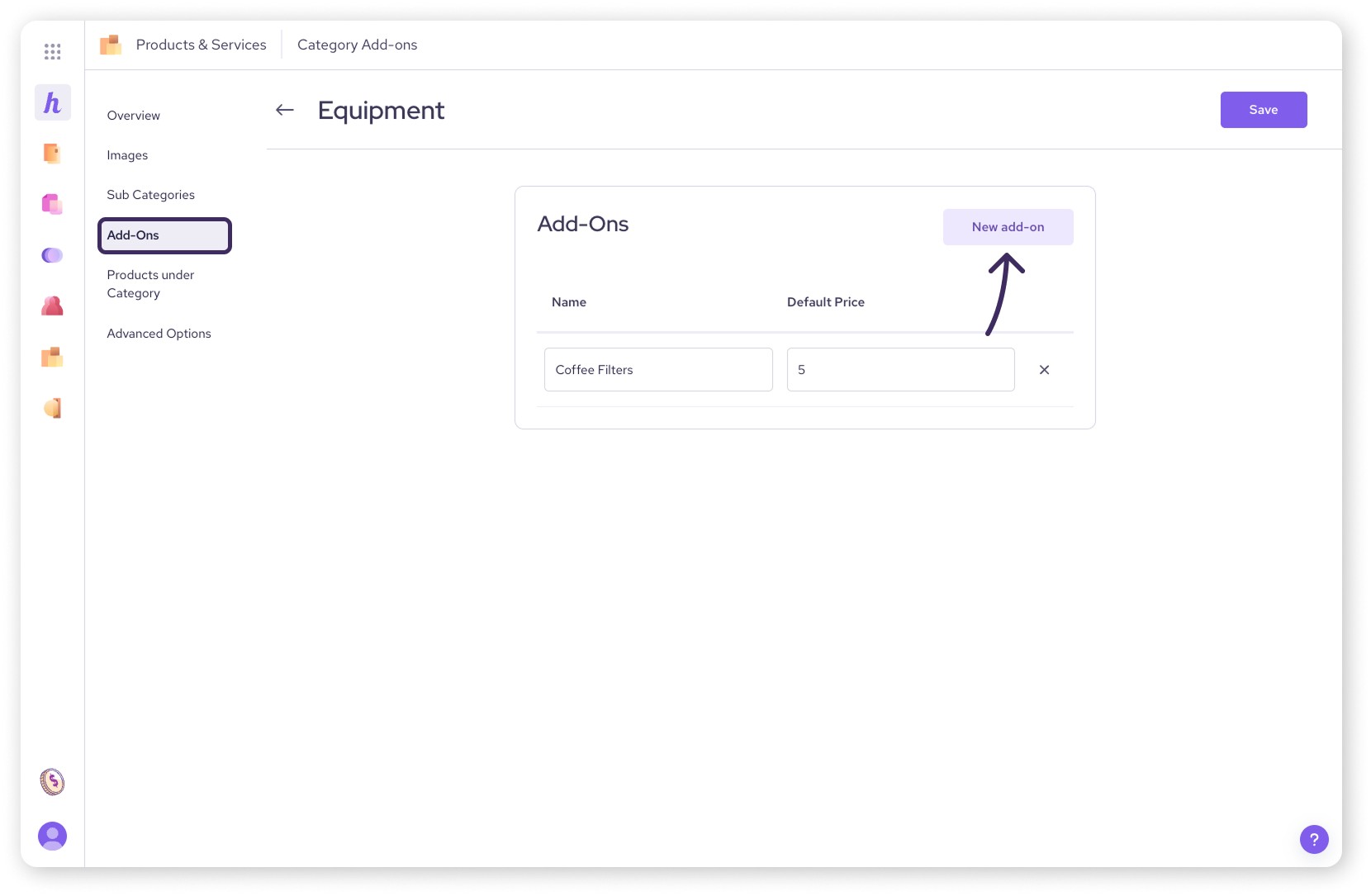
| To delete an add-on from a category, click on the X and then Save. |

Enabling add-ons on a good or service
Once add-ons are defined for a category, here's how you enable or customize them for specific products belonging to that category.
Select a good or service from your product library.
Make sure it's assigned to the correct category that has the add-ons you want to use.
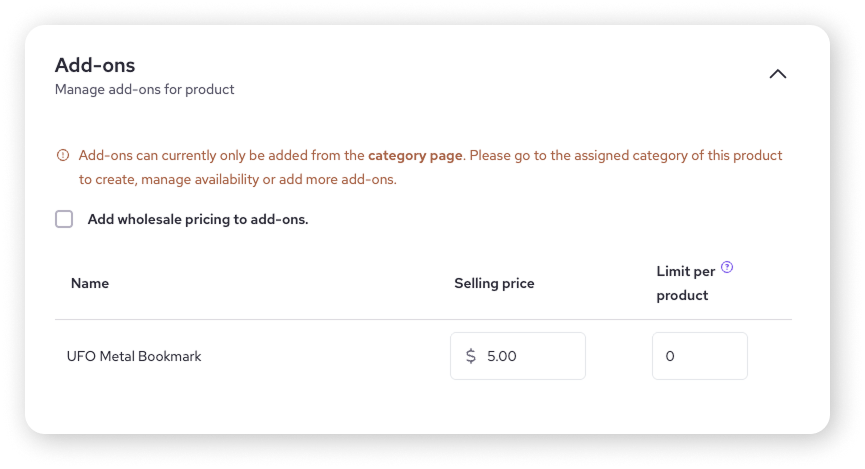
Click on the Add-ons section within the product editing screen.
You’ll see a list of the add-ons available from the product's category.
For each add-on, you can:
Adjust the Selling Price of the add-on for the selected product, if needed (overriding the category default).
Set a Limit of how many add-ons a customer can add to the product (if applicable).
You can also check the Add wholesale pricing to add-ons box to set a separate add-on price for wholesale customers.
After you’re done, click the main Save button for the product.
Variants and add-ons during checkout
Helcim Point of Sale (POS)
Once variants and add-ons are enabled for a product, you’ll see them appear in an item listing in the Helcim POS app.
Select an item from the Items view in the POS window to open an item listing.
Variants will show as Required selections before adding the item to the cart.
Add-ons will appear at the bottom of the listing as Optional.
Helcim Online Checkout
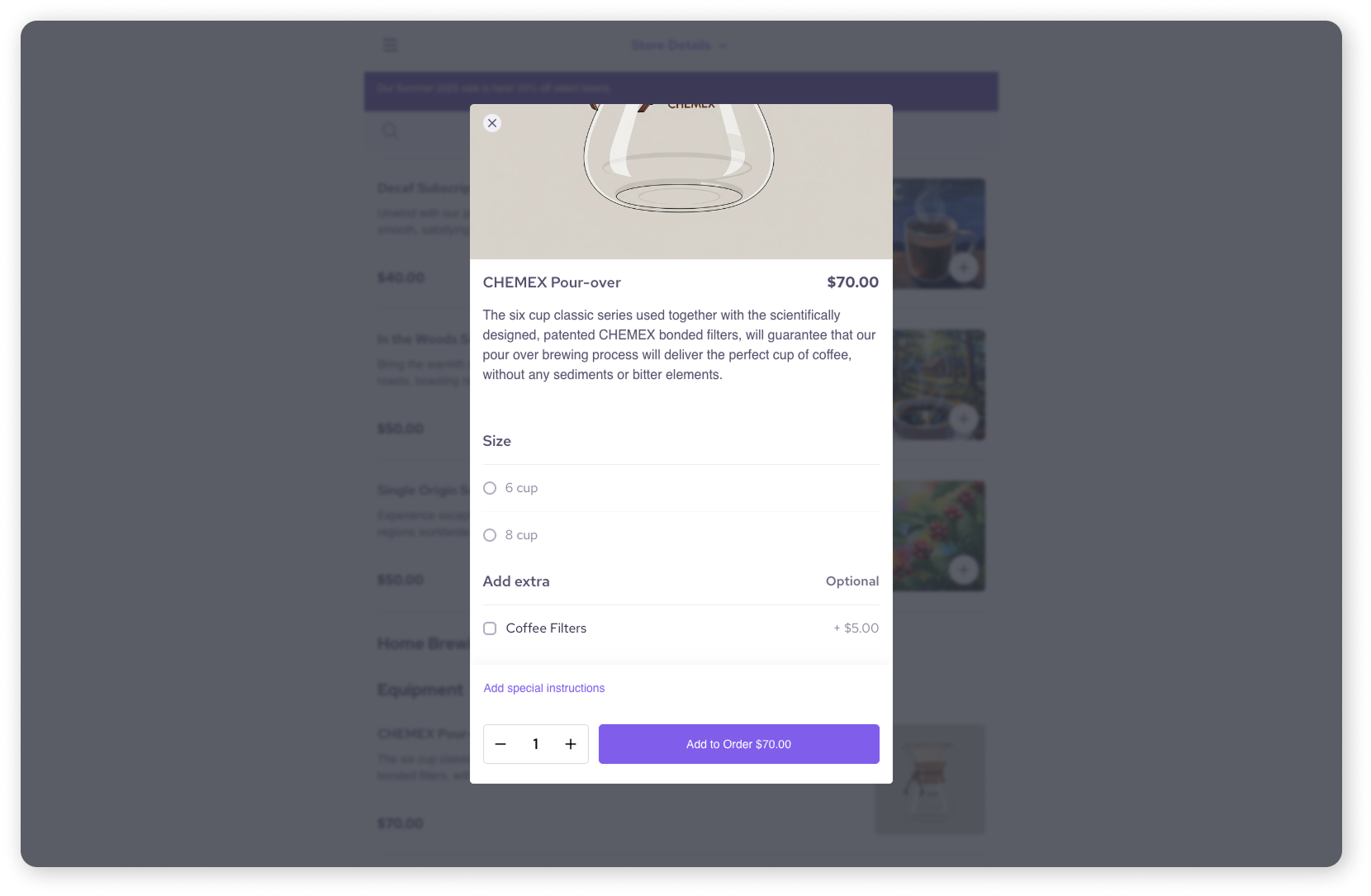
Once variants and add-ons are enabled for a product, your customers will see them when they select an item from your online store.
A pop-up for the item will open where your customer can scroll down and select the variant they want.
The customer won’t be able to add the item to their cart unless they select a variant
They can select the add-ons they want under Add extra.
Next steps
Learn about wholesale or BOGO pricing for variants/add-ons: Use advanced pricing options for products.
Track stock levels for your different variants: Configure and manage inventory.
Review how categories and add-ons work together: Organize products with categories, brands, and collections.
FAQs
What's the difference between a variant and an add-on?
Variants represent required choices built into a specific good (like size/color options). Add-ons are optional extras (like gift wrap, setup fee) that can be applied to any product (good or service) within a category where the add-on is defined.
How do customers select variants or add-ons?
During the checkout process (e.g. in the Online Store or Helcim POS), customers will be presented with a dropdown to select the required variant options before adding a good to their cart. Available add-ons are usually shown as checkboxes or additional items they can select to add to their order.
Why don't I see any add-ons when editing a product?
Ensure the product is assigned to a Category, and that add-ons have already been created for that specific category in the Categories settings area. Add-ons won't appear if the product isn't in a category or if no add-ons have been defined for that category yet.