Moving your business to a new platform shouldn’t mean spending days buried in manual data entry. Whether you manage a massive retail inventory or a detailed menu of services, Helcim’s bulk import tool is built to handle the heavy lifting so you can get your account active without the headache. Engineered to be fast, reliable, and incredibly forgiving, our system processes spreadsheets with up to 25,000 rows quietly in the background. This allows you to upload your entire catalog—including product variants, stock levels, and service rates—all at once, so you can skip the manual clicking and get straight back to running your business.
| This import tool is for adding or updating product details like name, price, description, and variants. If you only need to update stock quantities for existing goods, check out the dedicated Inventory Import process in the Configure and manage inventory article. |

Accessing the Import/Export function
Navigate to Products & Services (you can find this under the All Tools menu).
On the main Products page, click the 'Import/Export' button
.png)
.png)
Choosing your Import path
To keep your data clean and easy to read, we separated our bulk tool into three distinct upload paths. This means service-based businesses don't have to stare at retail fields like "shipping weight," and retail stores can manage stock efficiently.
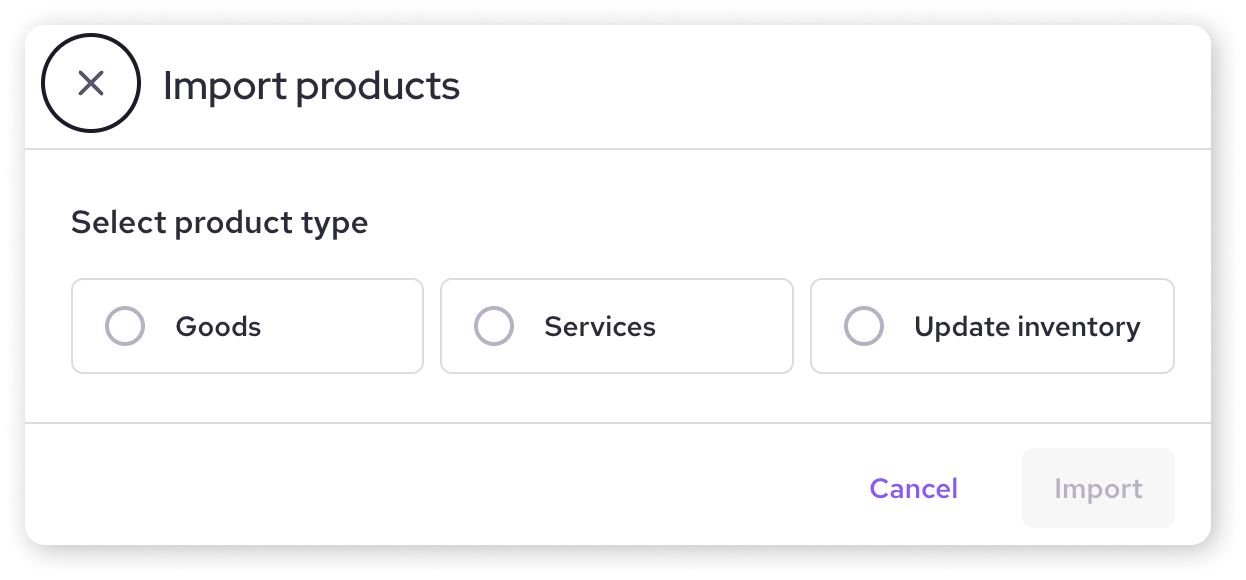
Goods: Built for physical items. This handles your primary products and all of their variations (like different sizes, colors, or materials) in a single file.
Services: Built for non-physical offerings or hourly rates (like for spas, mechanics, or consulting). It strips out inventory and shipping fields for a beautifully clean layout.
Update Inventory: Built strictly for routine stock counts or supplier restocks. It only edits stock quantities, keeping your prices and descriptions safely untouched.
| You don’t have to use a separate inventory file just to update stock. |
Choosing your Export path
Just like importing, you can pull your catalog data out of Helcim by choosing between three distinct export paths. Selecting the right export type keeps your spreadsheets clean and free of unnecessary clutter.
.png)
Goods: Exports your complete physical product catalog, including parent products and all linked variations (like sizes, colors, and SKUs). Use this if you need to make widespread changes to names, descriptions, or prices before re-uploading.
Services: Pulls a simplified list of all your non-physical offerings and hourly rates. This path leaves out irrelevant retail data like inventory quantities and shipping weights so you can focus entirely on your service menu.
Inventory: Exports a lightweight list of your physical items containing only three essential fields: SKU, Name, and Current Stock. This is the ideal layout for conducting a physical count or routine store-wide stock audit.
Download your sample file
Inside the tool, choose the data path that matches your goal (Goods, Services, or Inventory) and click the link to download your unique sample CSV file.
Fill out your data
Review these critical data requirements for each path to ensure a smooth upload:
| We removed several historical, low-usage fields (like dimension, length, and width) to cut down on visual clutter. Because these didn't impact shipping calculations or customer receipts, we trimmed them out to make your spreadsheets much easier to work with. |

Uploading your import
Once your CSV file is saved and ready, uploading it is a single-step process.
Inside the Import/Export modal, select the data type that matches your spreadsheet.
Choose the file from your device and click Import.
A success banner and loading bar will appear.
| To support massive files, we removed the old "review stage." As soon as you hit Import, the system gets to work. Because it runs asynchronously in the background, you can immediately navigate away, work on other tasks, or close your browser. Helcim will send you an email the exact second the upload is complete. |
Handling file errors
In the past, a single typo would cause an entire file to fail. Our new system is much more forgiving. If you upload a spreadsheet with 1,000 good rows and 5 broken ones, Helcim will successfully import the 1,000 items and flag the mistakes.
If there are errors, you'll see a notification in your dashboard and receive an email with an attached Error Report.
Open the downloadable error spreadsheet sent to your email or dashboard.
Look at the very last column—Helcim adds a custom column explicitly stating exactly what went wrong on that specific line (e.g., "Missing Parent SKU").
Fix the formatting errors on those specific rows, save the file, and re-upload it.
The system will cleanly update those fixed items without creating any duplicates of the products that successfully imported the first time.
Next steps
Double-check your imported items: Add and edit products / Add and edit a service.
Learn about organizing your products with categories, brands, or collections.
Need to update only stock levels in bulk? Read our article on configuring and managing inventory
FAQs
What's the difference between Product Import and Inventory Import?
Product Import (this article) adds or updates full product details (name, price, SKU, variants, etc.). Importing inventory is a separate, simpler process specifically for updating only the stock quantity of existing goods.
Can I update existing products using this import tool?
Yes, if your file includes an SKU that already exists in your Helcim account, the import tool will typically update the information for that existing product based on the data in your file's row.
How many products can I import at once?
You can upload massive files containing up to 20,000 to 25,000 rows in a single spreadsheet- a massive leap from the old 350 item limit. For exceptionally large cataglogs, be prepared for the background processing that may take up to 8-10 minutes.
Why did the loading bar disappear when I click away?
Because our system works quietly in the background to save you time, the live progress bar is only visible while you stay on the active page. If you leave the page, the bar disappears but don’t worry, the upload is still processing perfectly. Just keep an eye on your inbox for the confirmation email!
Will importing items overwrite my existing catalog?
Yes, if the system detects matching SKUs (for Goods and Inventory) or a matching Name (for Services) that already exists in your Helcim account, it will seamlessly update that item’s details with the new information from your spreadsheet.