Selling services instead of physical goods? You're in the right place! Adding your services (like consulting, repairs, or subscriptions) to your Helcim Products catalogue helps you easily add them to invoices, track sales, and keep things organized.
Remember, "Products" in Helcim covers both physical “Goods” and intangible “Services”. This guide focuses purely on adding and managing your services
Navigate to Products & Services
First things first, head to your main dashboard.
Login to your Helcim account.
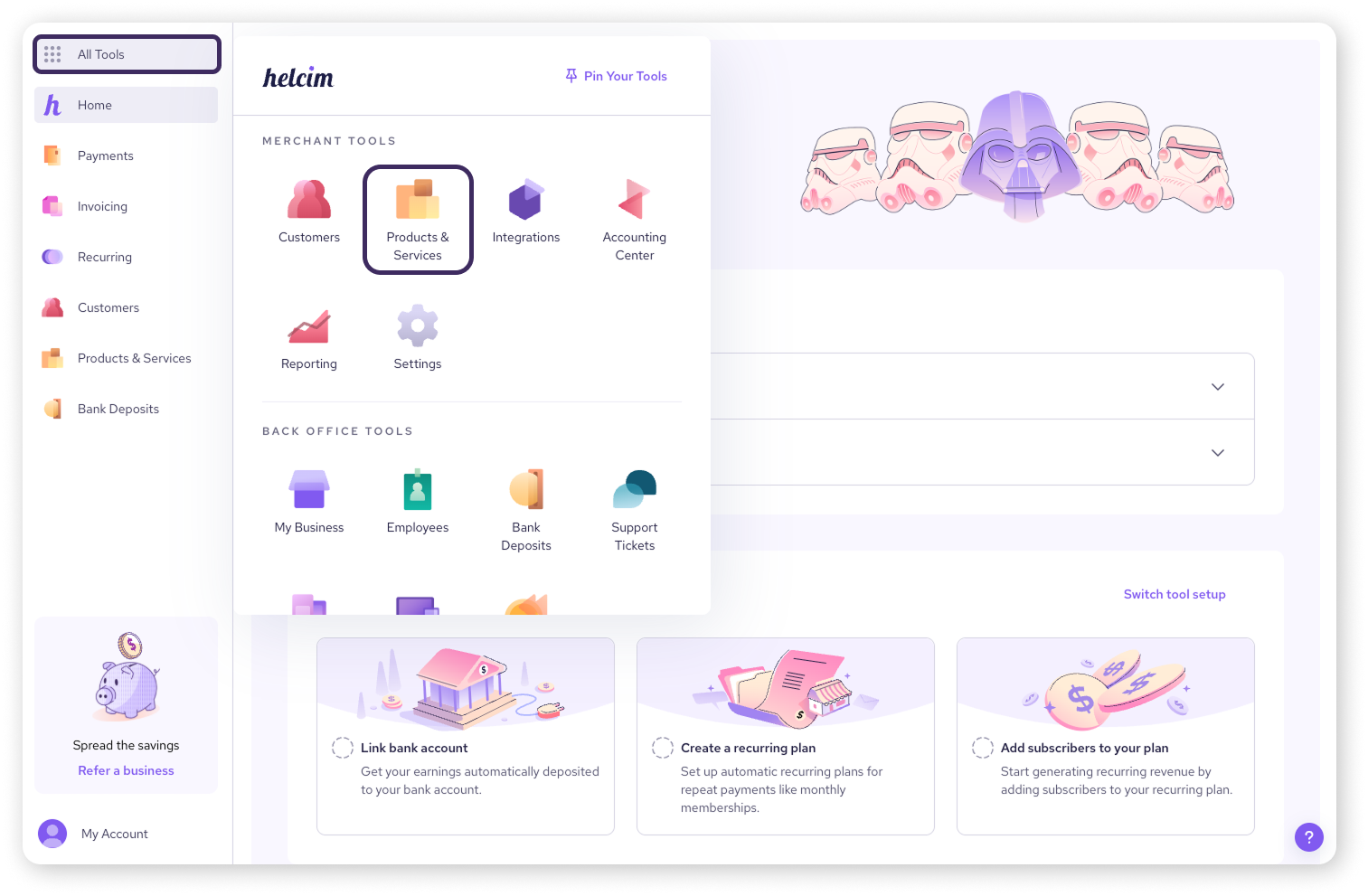
Click on All Tools.
Select Products & Services. This takes you to your main Products library.
Add a new service
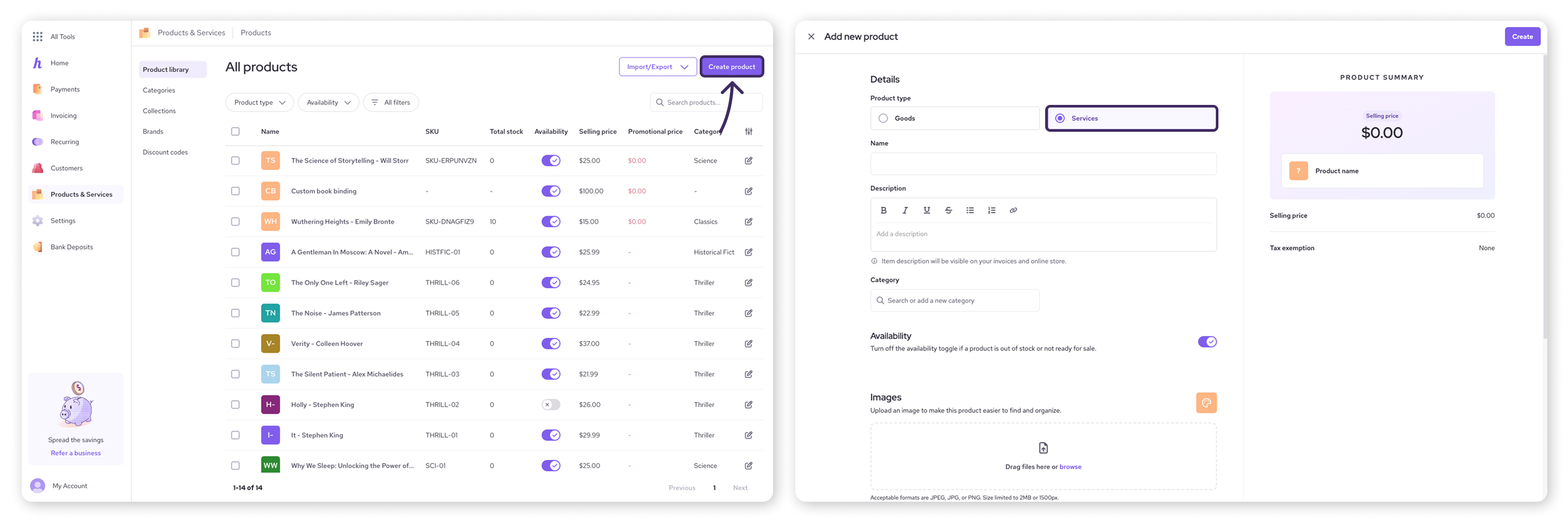
In the top right-hand corner of your Products library, click the Create product button.
This opens the creation screen. Make sure Services is selected as the Product type at the top.
Step 1: Enter core details
Fill in the essential information for your service:
Name: Enter a clear, descriptive name your customers will see (e.g. "Standard Website Consultation"). This is required.
Description: Provide more detail about what the service includes. This appears on invoices and online checkouts.
Category: Select an existing category or type a new one and click ‘Add new Category’. This helps organize your service offerings (e.g. "Consulting", "Web Design").
Availability: Toggle this off if the service is not available for sale yet.
Step 2: Add images (optional)
While less common for services than goods, you can add an image if it helps represent your offering (like a logo or illustrative graphic).
Scroll down to the Images section.
Drag and drop an image file or click browse to upload.
Tip: Accepts JPEG, JPG, or PNG formats, up to 2MB or 1500px wide.
If you add multiple, you can select a ‘Make Feature Image’.
Step 3: Set pricing
Define how much your service costs:
Selling price: Enter the standard price you charge for this service.
Offer this product on promotional price: Check this box if you're running a special offer. A field will appear for the Promotional price, which overrides the selling price when active.
| Need more complex pricing options? Check out our advanced pricing options article. |

Step 4: Set tax exemptions (optional)
Select More options, the choose a tax exemption from the dropdown. Services can be:
Fully taxable
Exempted from taxes altogether
Exempted from a subdivision (a province or a state)
Exempted from a country-level tax
Step 5: Save your work
Once you're happy with the details, click the Save button in the top right-hand corner. Your service is now part of your Products library!
Edit an existing service
Need to update a service later?
Navigate back to your Products & Services library.
Click on the Services tab.
Find the service you want to edit (use search if needed).
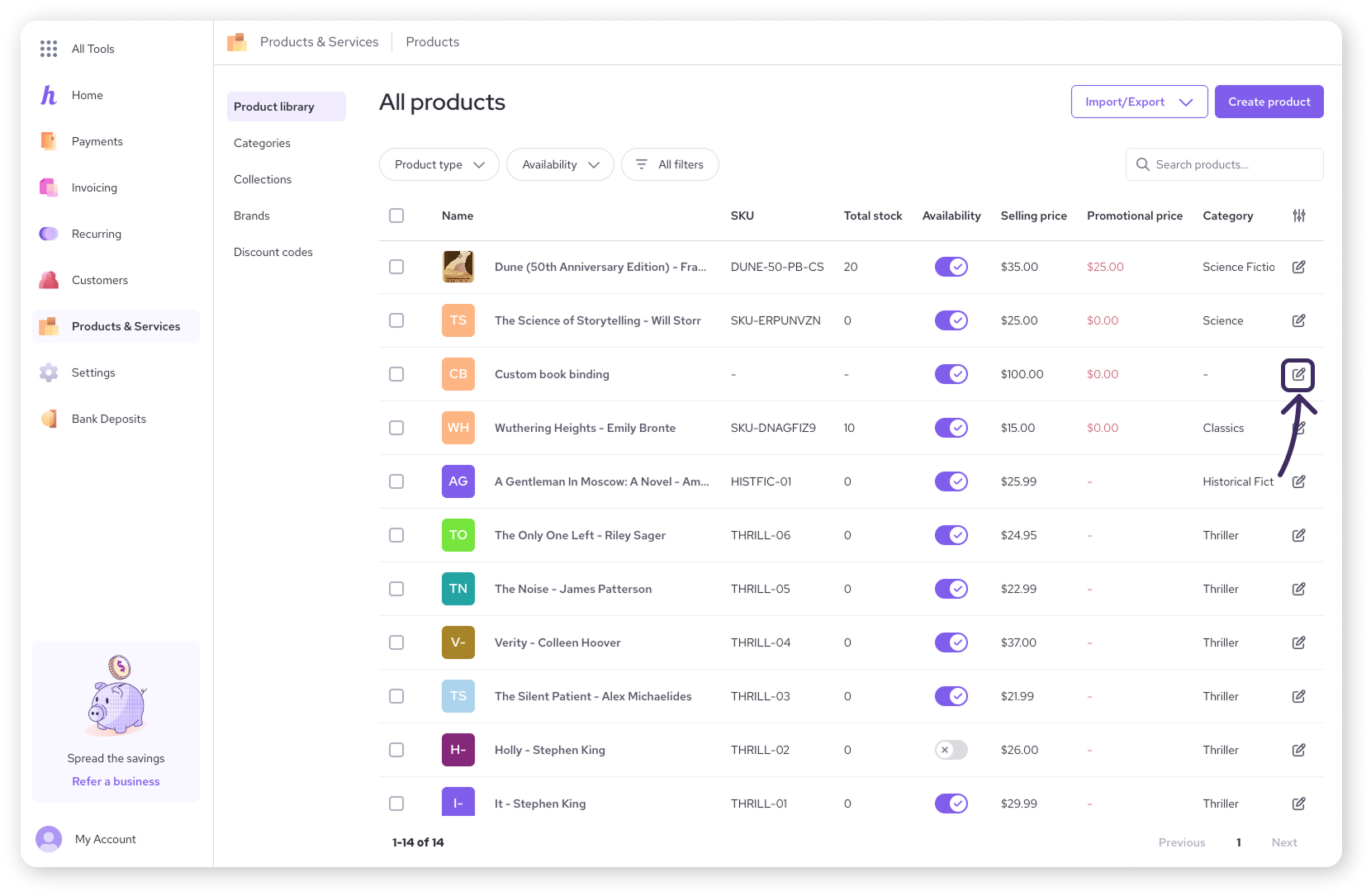
Click on
 on the right side to open the editor.
Modify the necessary fields in the editing screen.
Click Save to apply your changes.
Next steps
Organize products with categories, brands, and collections
Explore discounts or special rates in our advanced pricing article
FAQs
Can services have inventory?
No, inventory tracking (stock levels) is designed for physical Goods. You can track sales of services through reporting, however.
To learn more, visit our learn article on using Helcim’s built-in reporting.
Can services have add-ons?
Yes! If a service belongs to a Category that has add-ons defined (like an optional setup fee or extended support), you can apply those add-ons to the service. See the Organize products and Create variants and add-ons articles.
Can I apply taxes to services?
Yes, services are taxed based on your main tax settings, just like goods, unless you specifically mark them as tax-exempt after setting pricing.