Before you start selling, you need to make sure your tax rates are accurate. While Helcim comes with default rates, it is important to review them to ensure you are collecting the right amount.
This guide covers how to access your tax settings, edit rates, and choose how taxes are calculated based on location.
In this article
Accessing your tax settings
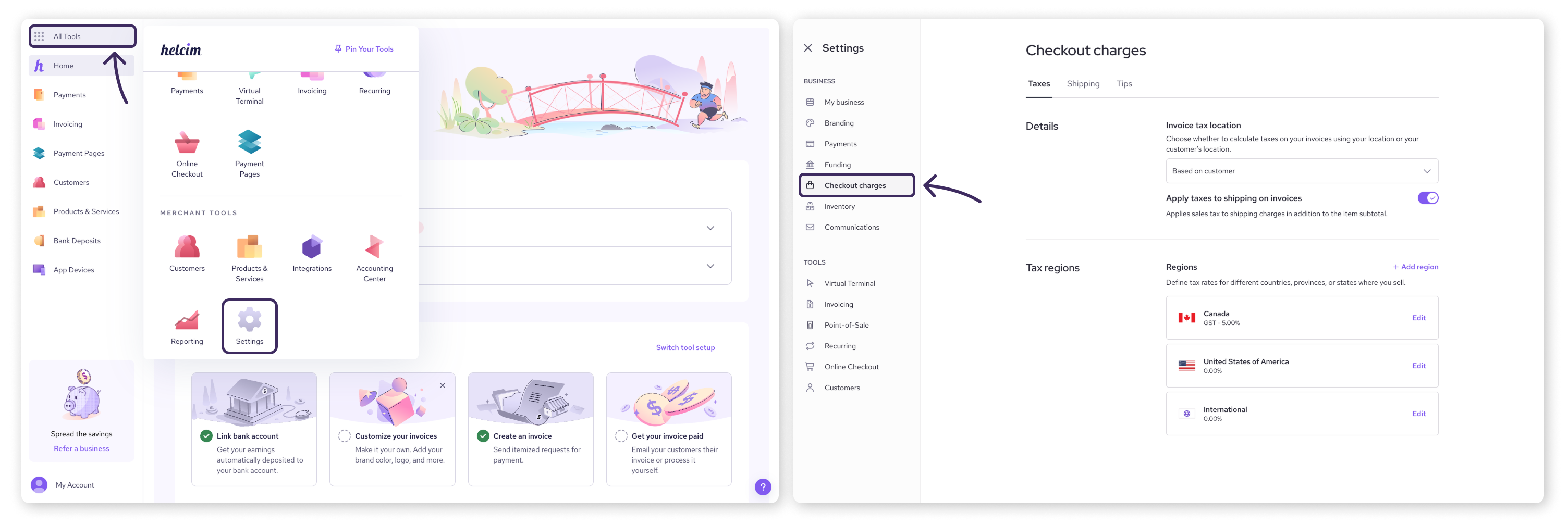
You can manage all your tax rates in the Checkout Charges section of your account.
Log in to your Helcim account.
Select Settings from the main menu or the All Tools menu .
Select Checkout Charges from the menu on the left .
Here, you will see a list of tax regions, such as Canada or the United States.
Editing tax regions and rates
If the default rate for your province or state has changed, or if you need to adjust the tax name, you can edit these settings easily.
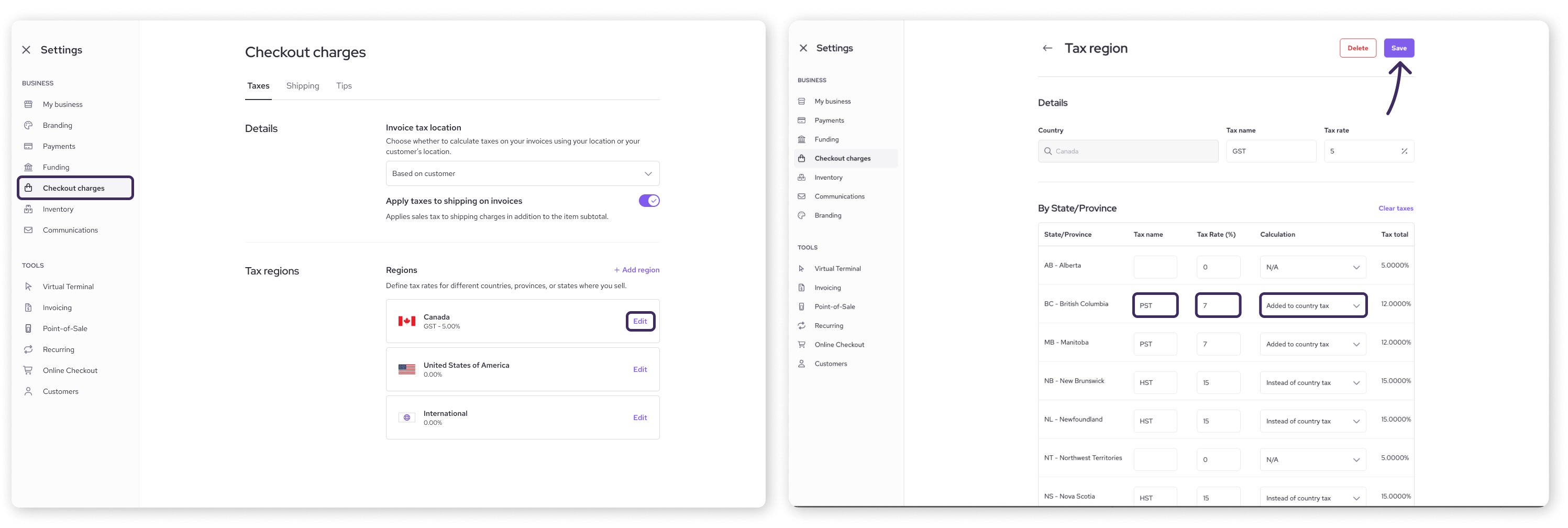
In the Checkout Charges page, click Edit next to the tax region you want to change (e.g. United States).
To change the country-wide tax, edit the Tax Name and Tax Rate at the top.
To change a specific state or province, scroll down to the list of regions.
Update the Tax Name or Tax Rate for that specific area.
You can also select whether the state or province rate is:
Added to the country tax.
Used instead of the country tax.
Applied after the country tax.
Click Save to apply your changes.
Adding an international tax region
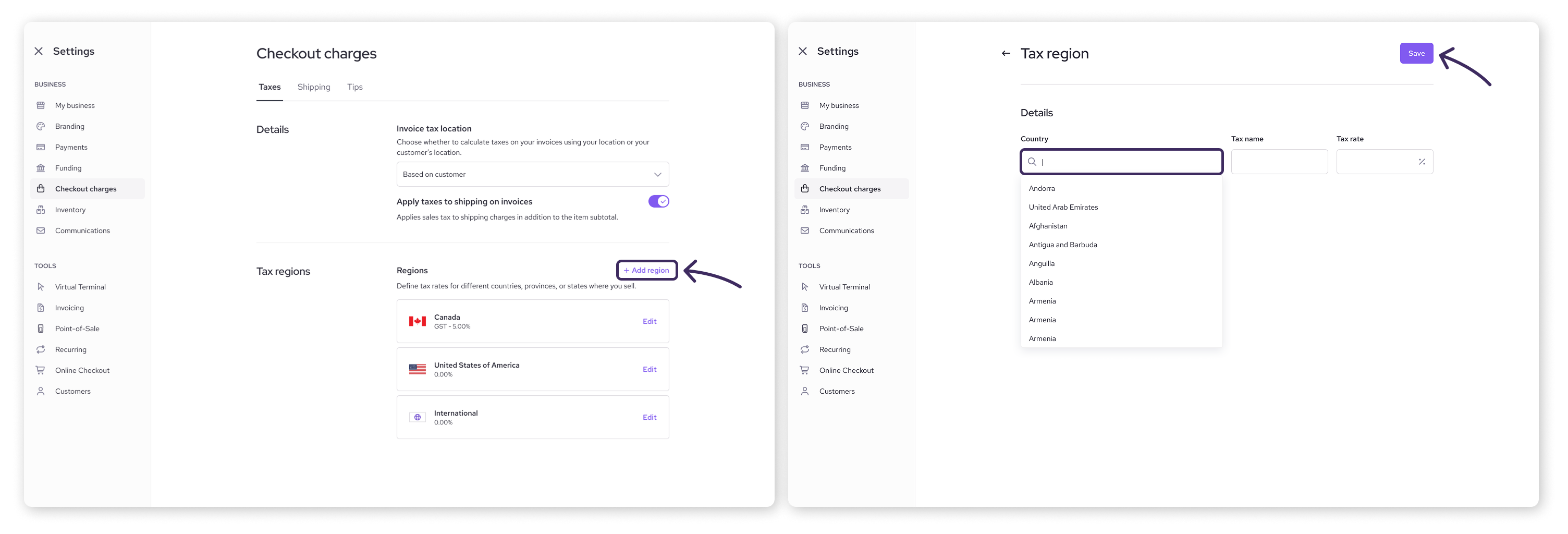
Currently, Helcim supports one additional tax region outside of Canada and the US. This is labeled as an "International" tax region .
In the Checkout Charges page, click Add region.
Choose a country name from the dropdown.
Enter a Tax Name and Tax Rate for your international customers.
Click Save.
 Business location vs. customer location
When creating an invoice with Helcim, you can choose the default logic Helcim uses to calculate tax. This setting determines which tax rate is pulled when a transaction occurs.
Customer location: The system calculates tax based on the shipping or billing address of the customer.
Business location: The system calculates tax based on your business's physical address, regardless of where the customer is located.
You can adjust this preference with the steps below.
In the Checkout Charges settings page we referenced above, look for Invoice tax location.
Use the dropdown to select one of the following
Based on merchant terminal: Defaults to the business location.
Based on customer: Defaults to the customer location.
The setting will be saved once you select and click away from the dropdown.
Important note for US merchants
Sales tax rules in the US can be complex. Some states are origin-based (charging tax based on where you, the seller, are located), while others are destination-based (charging tax based on where the buyer receives the product).
We recommend consulting with a tax professional or accountant to determine which setting is compliant for your specific business and state.
Next steps
Now that you've set up your taxes, you're well on your way to accepting payments! Next, let's get you set up with what you need to process transactions.
To look at how to actually apply these taxes when making a sale, check out our article on taxes during checkout.
If your business takes payments in-person, check out our article on ordering equipment to choose the best option for your business.
If you have a team that will be processing payments for you, check out our article on adding employees to your Helcim account
If you’re ready to take a payment, skip ahead to our article on processing your first transaction.
FAQs
Can I create a tax rate for a specific city or county?
Not directly. Helcim is set up for country, state, or provincial taxes only. However, you can use the custom label fields to rename a state tax to something specific (like "NYC Tax") if that helps your staff identify it.
How often should I review my tax settings?
We recommend checking them at least once a year. Since Helcim’s default rates do not update automatically, checking them annually helps ensure you remain compliant.
Can I add more than one tax rate for a single state?
No. Each state or province can only have one assigned tax rate. If you have multiple taxes that apply to one region, you should combine the percentages into one total rate.