Once your tax rates are set up in the background, you need to know how to apply them when you are processing a sale.
Since each tool works a little differently, this guide covers how to handle taxes on everything from the POS app to recurring payment plans.
In this article
Taxes on the Helcim POS app
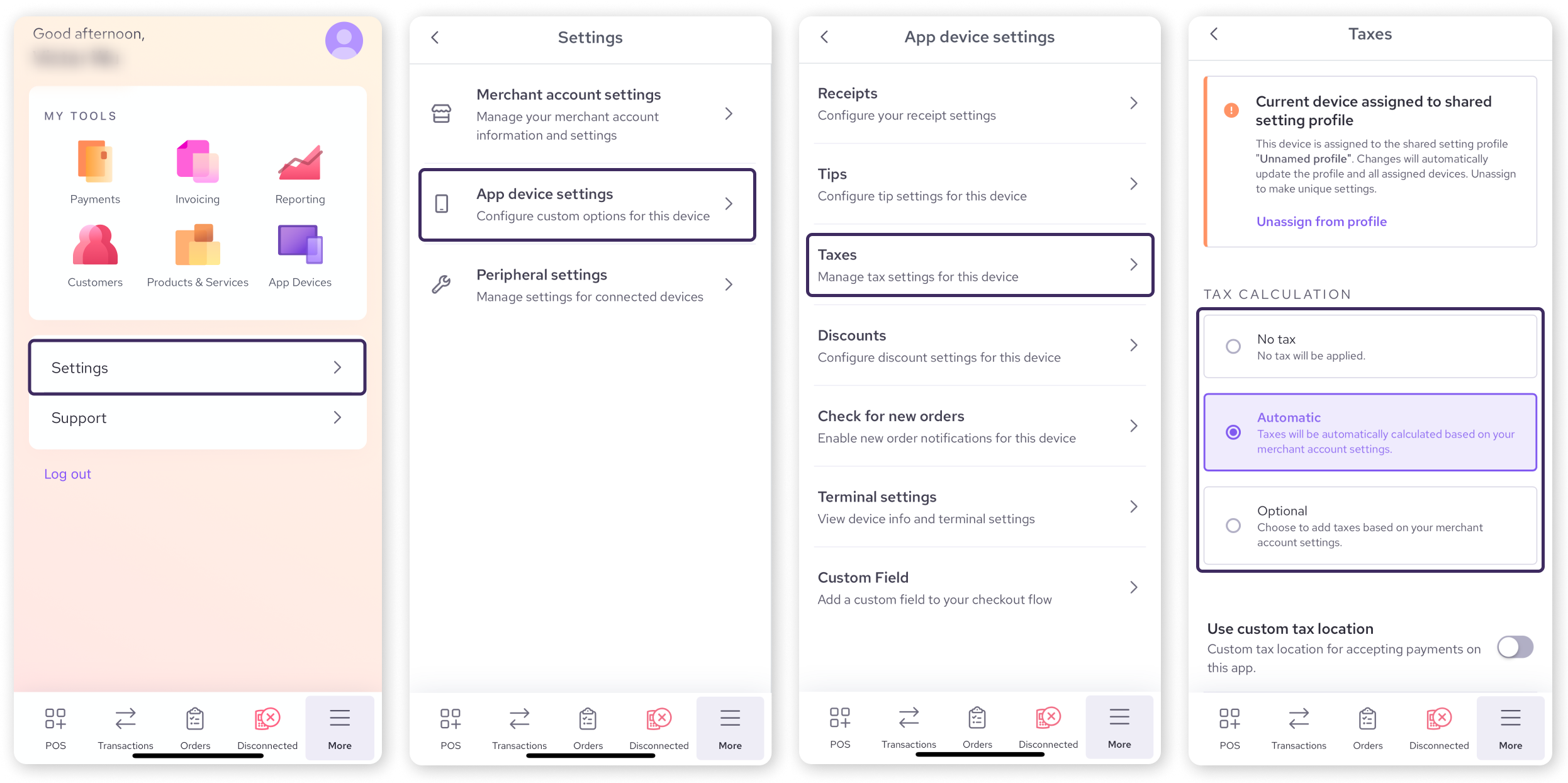
The Helcim POS app can add taxes automatically, but you need to choose your preferred setting first.
To find these settings:
Open the POS app.
Open the settings page.
Desktop version: Go to More > Settings
Mobile or tablet version: Go to More > App device settings
Select Taxes.
You will see three options:
Automatic: Taxes are added to every sale automatically.
Optional: Taxes are calculated but not added by default. Your staff can toggle them on during checkout if needed .
No tax: Taxes are never shown or added. On the desktop version of the app, this is achieved by turning all of the toggles off.
Invoicing and Virtual Terminal
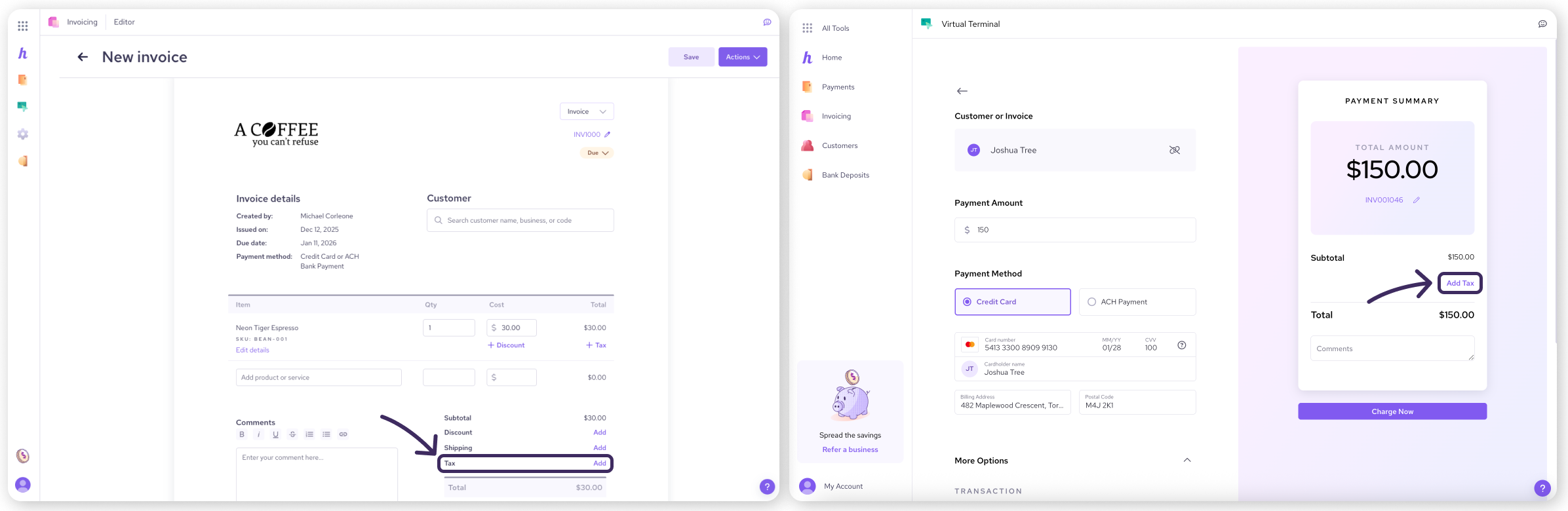
For Invoicing and the Virtual Terminal, taxes are not automatic. You have full control over when to apply them.
Look for the Tax field near the subtotal.
It will be empty by default. Click Add or Add Tax.
Select the correct tax region from the dropdown menu (e.g., your local state tax or a different region if shipping).
Finally, select Add.
Payment Requests
Payment Requests are designed for speed, so the tax options are simpler.
Enter the payment amount.
Check the box labeled Add Tax.
.png)
| This tool automatically applies the tax rate for your business's location. You cannot change the tax region or amount on a Payment Request. If you need to charge a different tax rate (like a customer's local rate), please use the Invoicing tool instead. |

Recurring Payment Plans
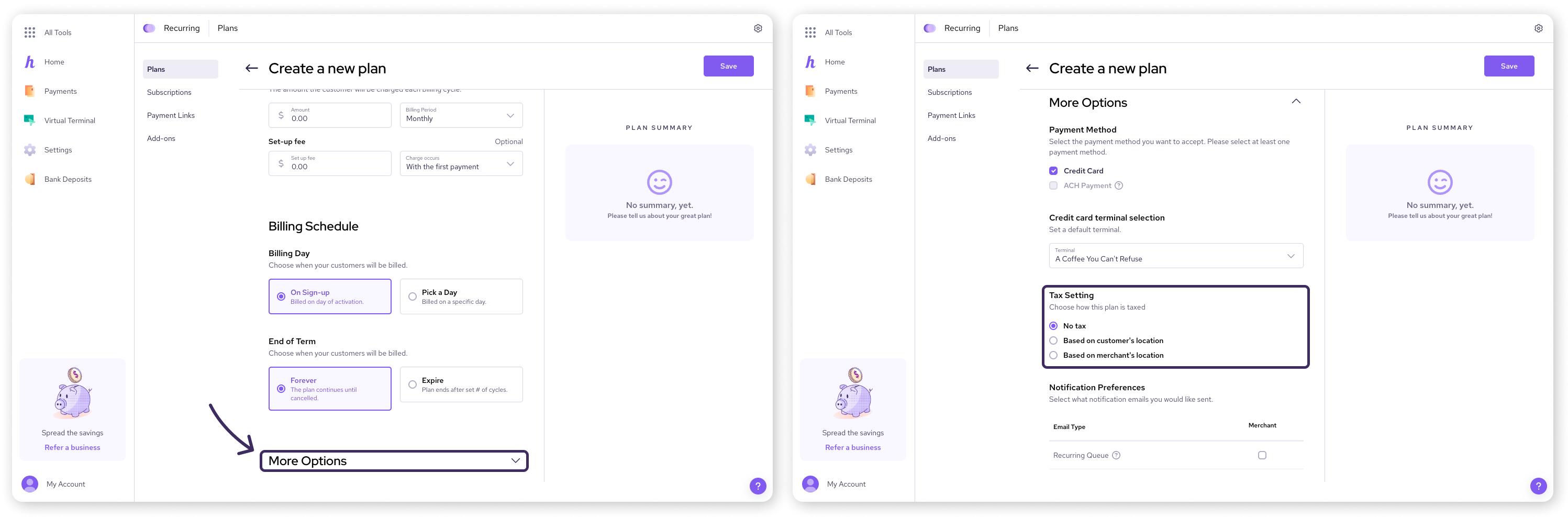
When setting up a subscription or recurring payment, you can choose how taxes should be handled for that specific plan.
Create a new plan and enter the basic details.
Scroll down and click More Options.
Find the Tax Setting field.
You can select one of three options:
No tax: No tax will be charged on these payments.
Based on customer's location: The system looks at the customer's address on file to decide the rate.
Based on merchant's location: The system uses your business address to decide the rate.
Online Checkout
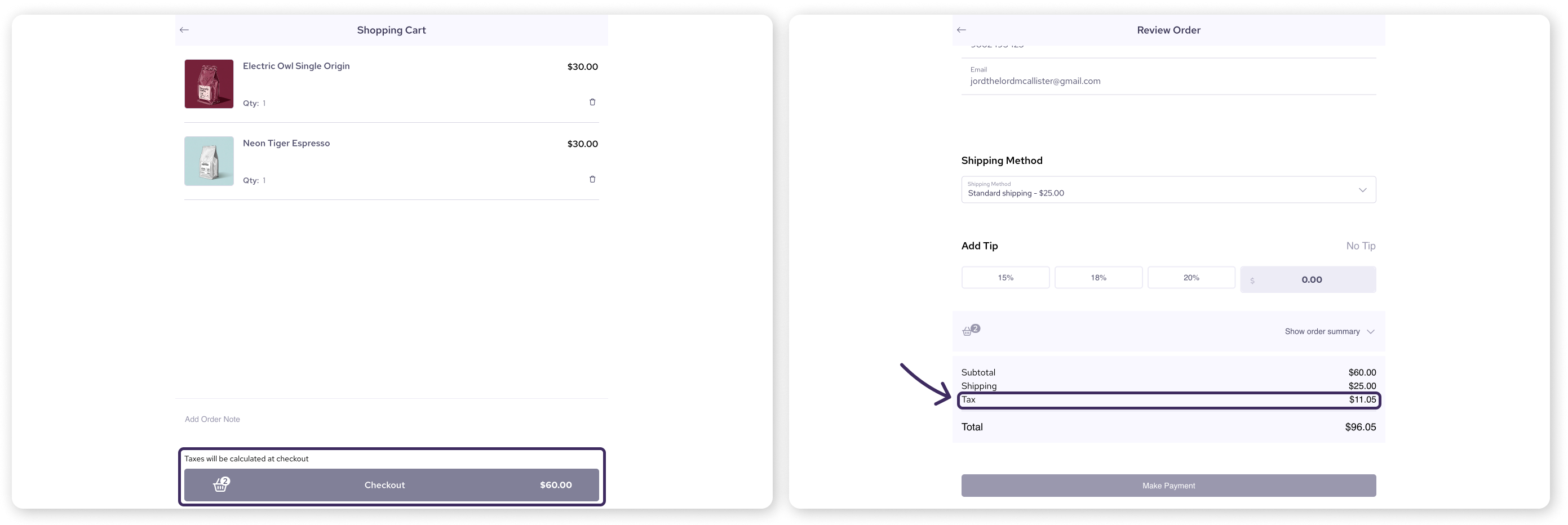
For sales made through your online store, the system handles the calculation for you.
The tax is calculated automatically after the customer enters their address.
The system uses the customer's location (the address they entered) to determine the correct tax rate.
How taxes appear on receipts
Invoices & itemized receipts: Taxes appear as a separate line item in the totals section, clearly showing the amount collected .
Standard receipts: Taxes are not listed.
Handling refunds
If you need to refund a transaction, you don't need to do any extra math.
Full refunds: Helcim automatically refunds the tax amount along with the sale amount .
Partial refunds: The system simply returns the funds to the card. If you need your tax reporting to be perfectly precise for a partial refund, you may need to calculate the tax portion manually.
Next steps
You now know how to charge taxes across all our tools. But what if you have a customer (like a non-profit) who shouldn't be charged tax at all?
| Learn how to create tax exempt products or customers in this next article. |

FAQs
Can I turn off taxes for just one transaction on the POS?
Yes, but only if your settings are set to Optional. If your settings are set to Automatic, the tax will apply to everything in that session.
If I edit an invoice, does the tax update automatically?
Yes and no. If you change the items on a digital invoice, the tax will recalculate when the customer clicks the link to pay. However, the PDF attached to the original email will not change. You would need to re-send the invoice to update the PDF.
Can I include tax in the price?
Yes, but you have to do the math yourself. You must raise your product price to include the tax, and then ensure no tax is selected during checkout. Note that this means your tax reports will show $0 collected.