Have you ever found yourself wondering what happened to a specific payment? Keeping track of your sales and payments is a fundamental part of running your business, and your Helcim account makes it simple.
This article will show you how to easily access and view your transaction history directly from your Helcim online account dashboard and in your Helcim POS app.
View transactions in your Helcim account dashboard (web browser)
Knowing where to find your transactions is the first step to staying organized. Your Helcim online account provides a clear overview of all your payment activity.
To review your recent transactions, follow these steps:
Log into your Helcim account.
Open the All Tools menu and select Payments.
You will be taken directly to the Transactions dashboard.
Once on the Transactions page, you'll see a list of your transactions, displayed in order of date. At a glance, you can easily view key details for each transaction including the amount, status, type, user, contact name, card type, and cardholder.
.png)
View transactions in the Helcim POS app
The Helcim POS app gives you access to the same transaction information you can find in your Helcim online account, whether you're on a desktop or a mobile device.
Log into your Helcim POS app with your password or PIN.
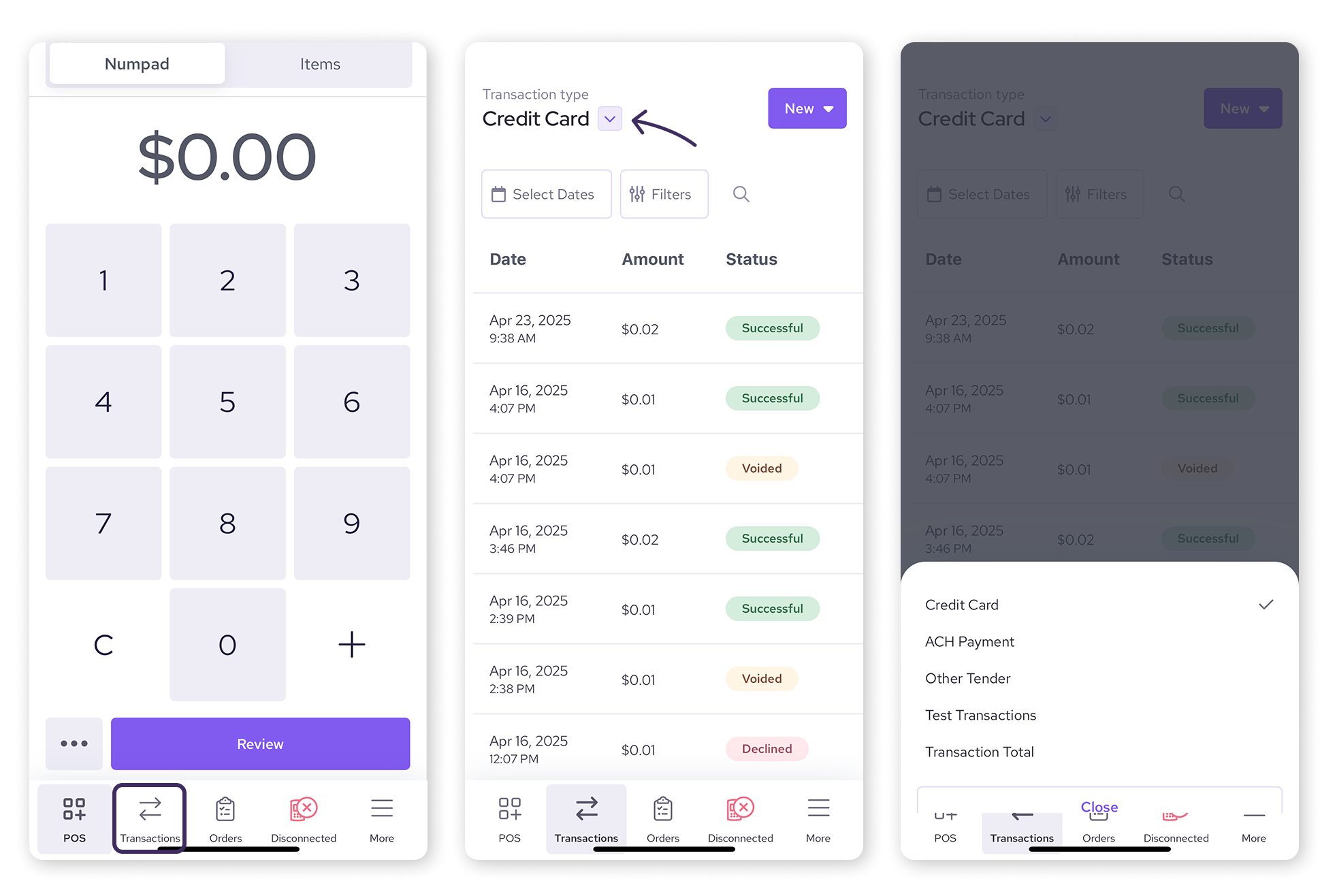
Select Transactions from the menu at the bottom of your screen.
In both the desktop and mobile versions of the Helcim POS app, you can view your latest transactions and perform most of the same functions available in the Helcim online account, including changing the transaction type view, searching, and applying filters.
Using search and filters
Whether you're looking for a sale from five minutes ago or five months ago, these tools help you narrow down your list in seconds:
Date: Filter your transactions by a single day, week, or custom date range.
Status: Sort transactions by their current state, such as successful, declined, or processing.
Method: Quickly isolate card transactions, bank payments (ACH), or other tender types.
User: Filter transactions by the specific staff member who processed the sale.
All filters: Open a deeper list of search parameters to pinpoint specific transaction groupings.
Search transactions: Type in a transaction ID, customer code, or invoice number to bring up a specific record instantly.
Export icon: Located next to the search bar (the tray with the upward arrow), this button allows you to download your current list view directly to a CSV file for your accounting.
.png)
| Looking for your totals of a payment method? Go to the Business Overview tab in Reporting |

Statuses
Success and pending statuses
Successful: The transaction went through perfectly, and the payment has been completed.
Processing: Primarily used for bank payments (ACH) while they undergo settlement, ensuring you don't confuse pending transfers with completed sales.
Pending: The transaction is currently in progress and has not yet been finalized.
Uncaptured: A credit card hold (pre-authorization) was approved, but the payment has not been finalized yet.
Captured: A pre-authorization card hold has been finalized and completed.
Reversals and failures
Voided: The transaction was canceled on your end before it could be processed or settled.
Refunded / Partially refunded: Either the full amount or a portion of the original payment has been returned to your customer.
Declined: The bank or card issuer did not approve the payment. Click the transaction to view human-readable explanations of why it failed and how to resolve it.
Expired: The credit card authorization hold or the customer's payment link is no longer valid. actions on a transaction
.png)
Take actions on a transaction
In your Helcim online account or Helcim POS desktop app
Select the 3 dots on the right-hand side of the menu next to the transaction.
.png)
In the Helcim POS mobile app
Select the individual transaction you wish to manage.
Then, click on the 3 dots in the corner to access the available actions.
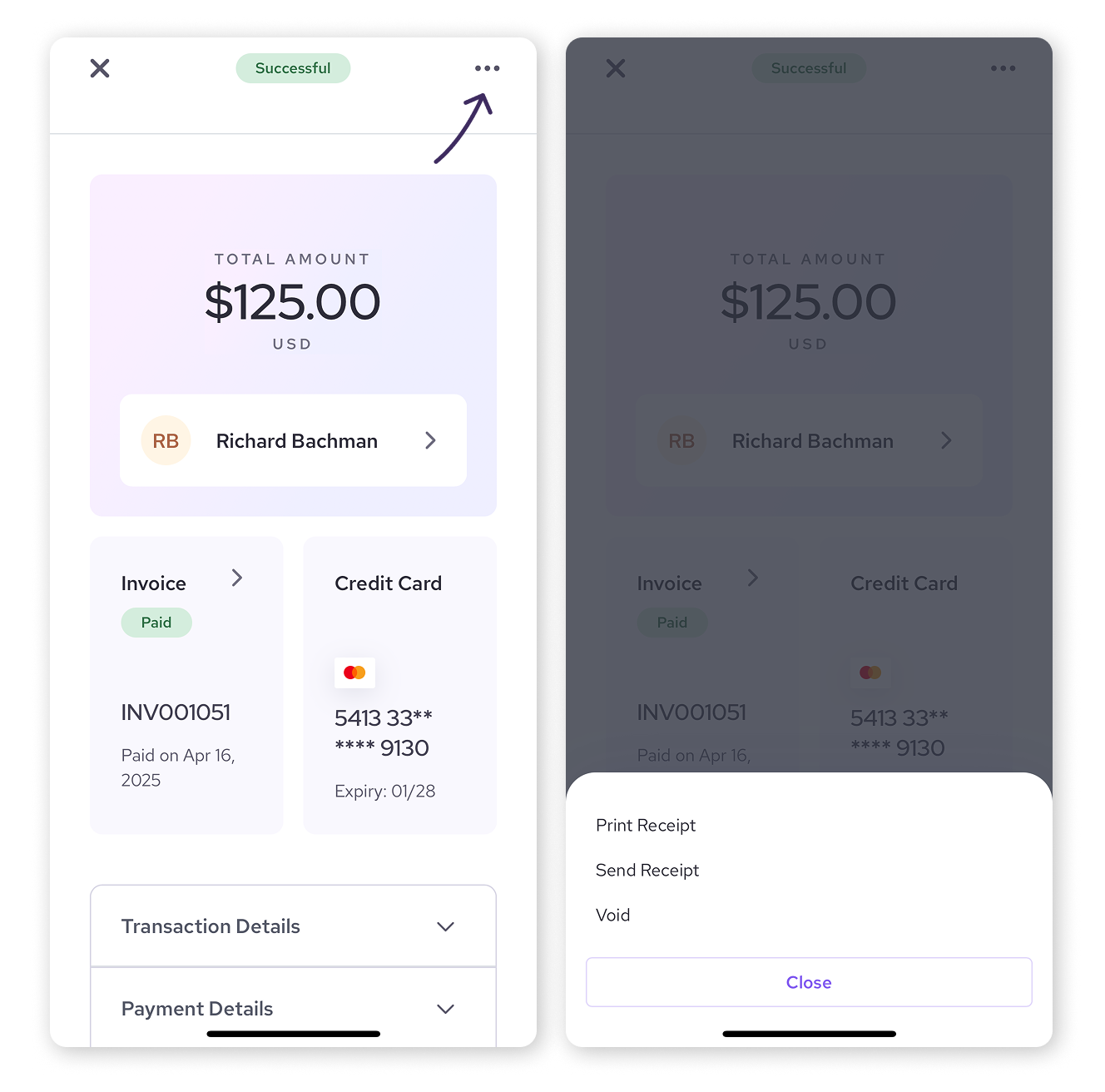
From this actions menu, you can:
Download or view a transaction receipt.
Send an email receipt.
Take additional actions depending on the status of your transaction, such as capturing, voiding, or refunding a transaction.
For more detailed guides on specific actions, check out these articles:
View details for a specific transaction
When you click on any individual transaction from your list, a detailed slide-out panel appears. This panel consolidates everything you need to know about that specific payment—from card information and security checks to customer details and quick actions, all in one place.
Here is a breakdown of what you will see across the different areas of this panel.
.png)
Quick action header
At the very top of the panel, you get an immediate visual summary of the transaction's health and instant tools to manage it:
Status and risk badges: View real-time indicator pills like Successful or Low risk so you know the payment is secure at a glance.
Customer shortcut: Click the customer's name block to jump directly to their saved customer profile.
Void / Refund card: If the batch is still open, click Void to cancel the transaction immediately. If the batch has settled, this quick action card will automatically update to let you issue a refund.
Print receipt: Click Print receipt to instantly generate a paper or digital copy for your customer.
Navigation tabs
You can toggle between three tabs at the top of the panel to view different levels of transaction data:
Overview: Selected by default, this shows the main payment details, security checks, and customer card information.
Risk insights: Dive deeper into the transaction's fraud analysis to see why a payment was marked as low, medium, or high risk.
RAW data: Access the technical payment processing response data, which is highly useful for advanced auditing or troubleshooting.
Transaction and card details
This section displays the key details of the purchase and the card used to pay:
Time processed: See the exact date and timestamp of the transaction.
Type: Identifies the transaction style, such as a Purchase or pre-authorization.
Card details: Review the Cardholder name, the card brand logo, the masked Card number showing only the last four digits, and the Card expiry date.
Invoice no.: View the unique invoice number tied to the checkout page or billing request.
Security and settlement information
Further down, you will find information regarding processing security and ledger tracking:
Approval code: The unique authorization code sent by the customer's issuing bank.
Security checks: Review the results of your security filters, including AVS check (Address Verification System) and CVV check (the 3-digit security code on the back of the card) to confirm the buyer's identity.
Batch: Displays the specific batch number this transaction is grouped into, allowing you to trace when the funds will deposit into your bank account.
ID: The platform transaction identifier. Click the Copy icon next to the number to quickly paste it into support messages or accounting logs.
Processing account: Identifies which of your specific merchant accounts processed the sale (such as your CAD or USD terminal).
Financial breakdown
At the very bottom of the details tab, you will see a clear, line-by-line look at the transaction's pricing:
Total amount: The final amount charged to your customer's card.
Amount: The base price of the products or services rendered before processing adjustments.
Fee saver: If your account utilizes our fee-saver tools to pass card fees along, this line displays the exact fee-adjustment amount applied to the checkout total.
Next steps
Now that you know how to view your transactions, you might want to explore how to customize your view or use filters to find specific transactions even faster.
Learn how to customize and filter your transaction view.
Discover how to export your transaction data for record-keeping.
FAQs
Where can I find my transaction history?
You can find your transaction history in your Helcim online account through the Payments tool, or in the Helcim POS app by selecting Transactions from the menu.
Can I see transactions other than credit card and debit card payments?
Yes, you can use the Transaction type dropdown to view ACH payments, other tender types, test transactions, or transaction totals.
Can I view my transaction details in the Helcim POS app?
Yes, both the desktop and mobile versions of the Helcim POS app allow you to view a list of your transactions and their individual details.